
How to make an order?Updated 8 months ago
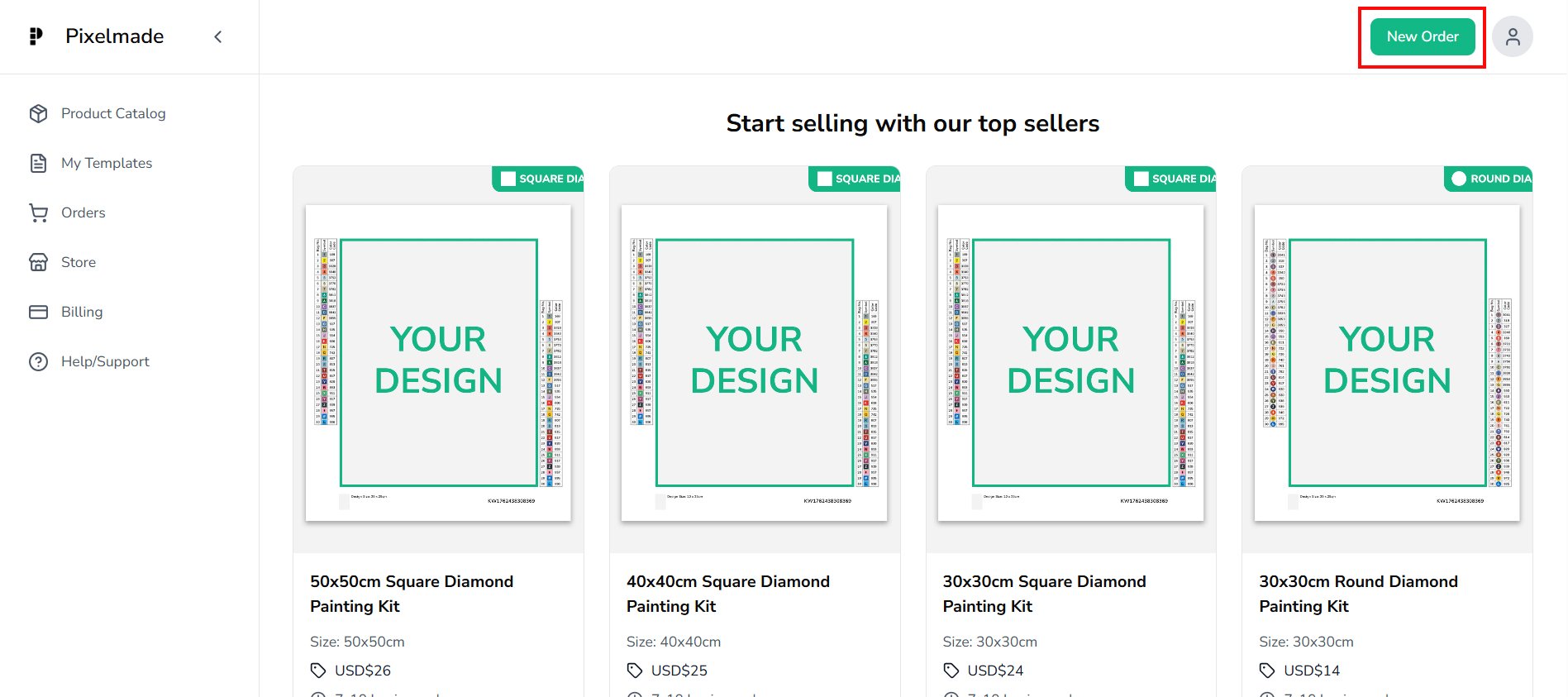
- Click the "New Order" button to start a new order.
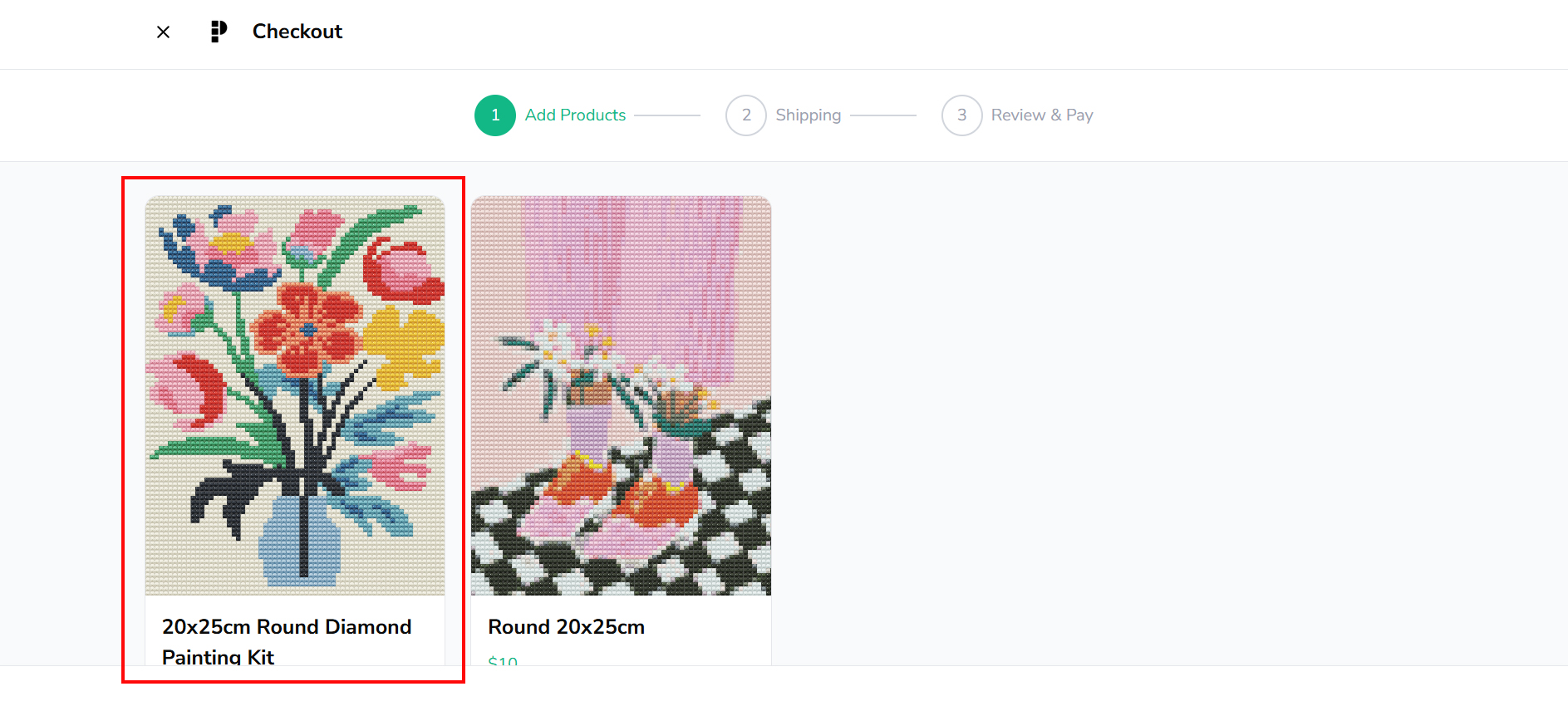
- Select the desired product template.
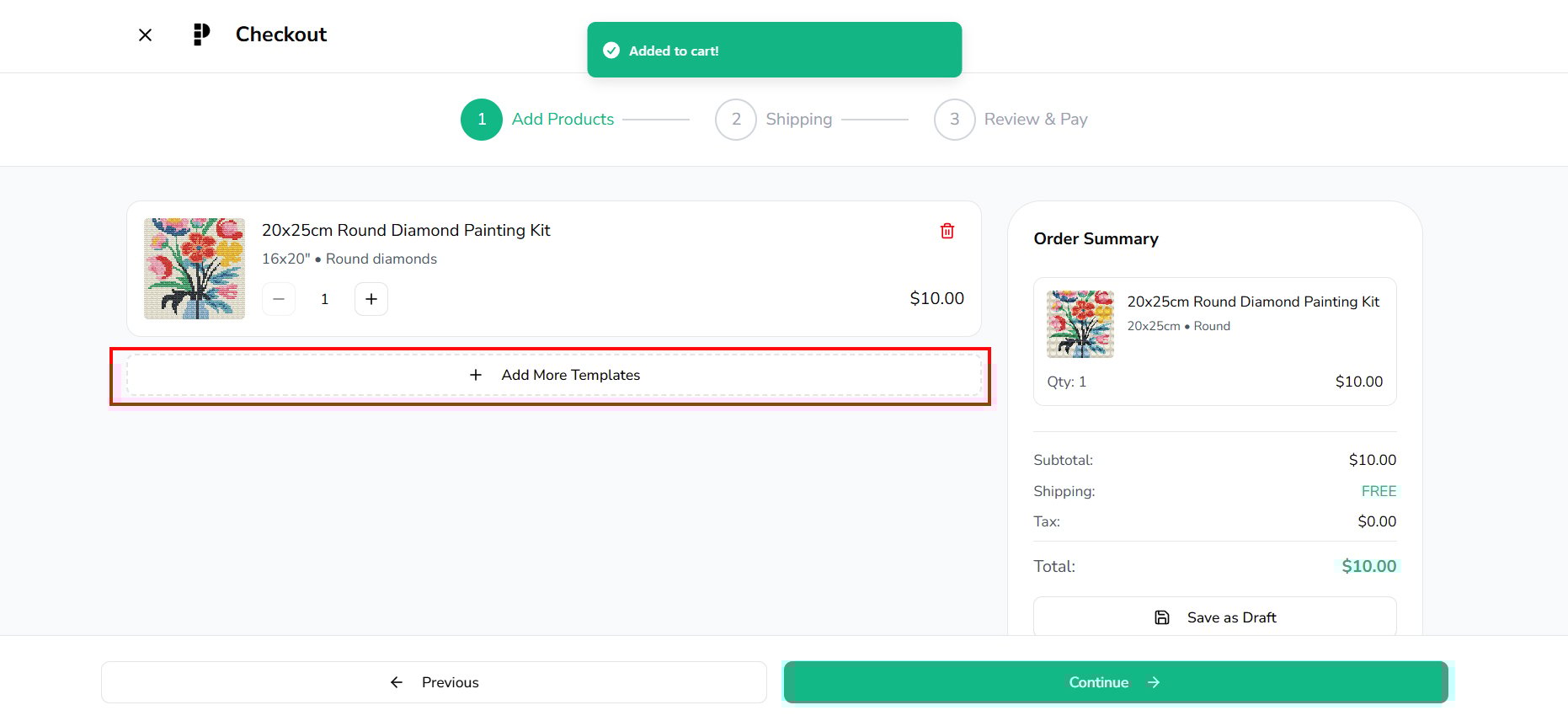
- Then you'll see the product added as Line Item on your order. If needed, click the "Add More Templates" button to include more items in your cart.
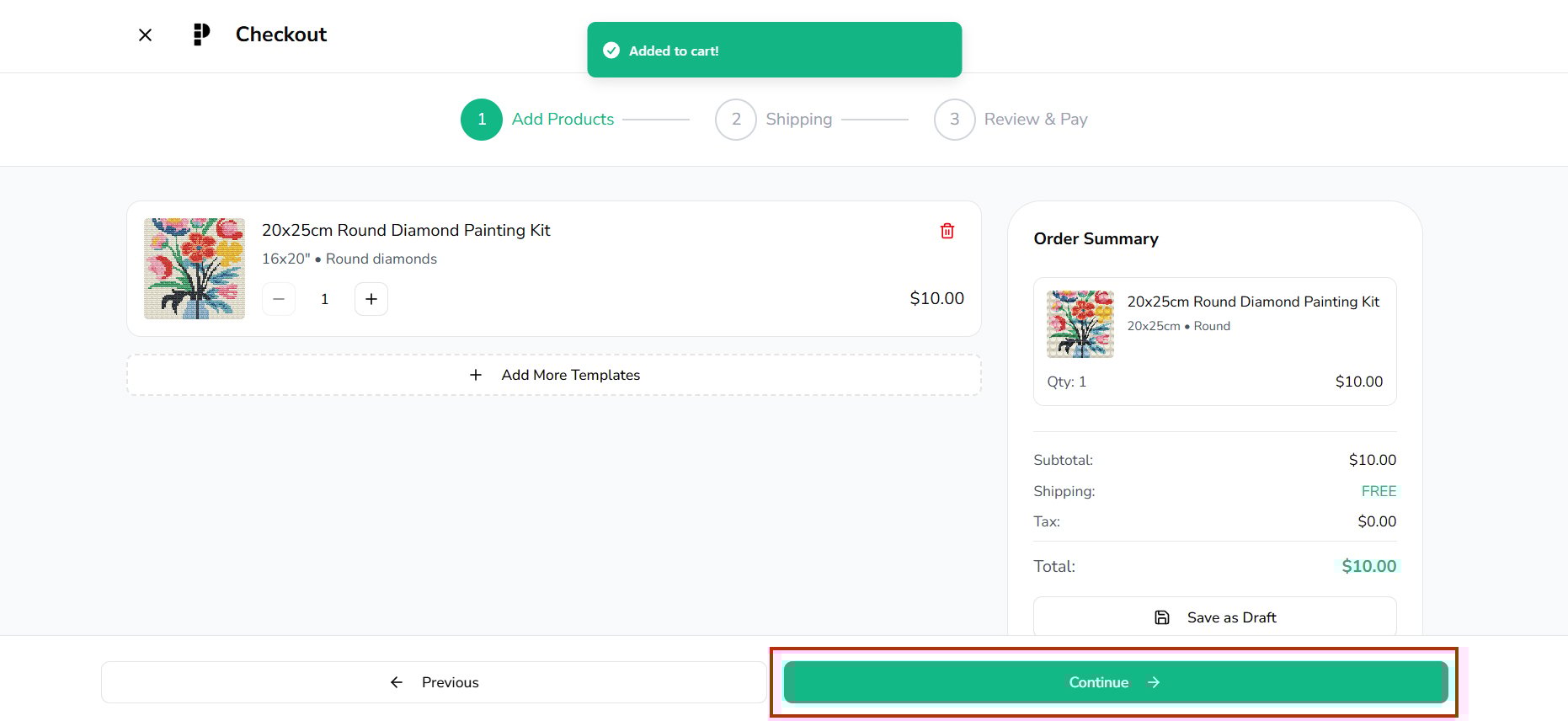
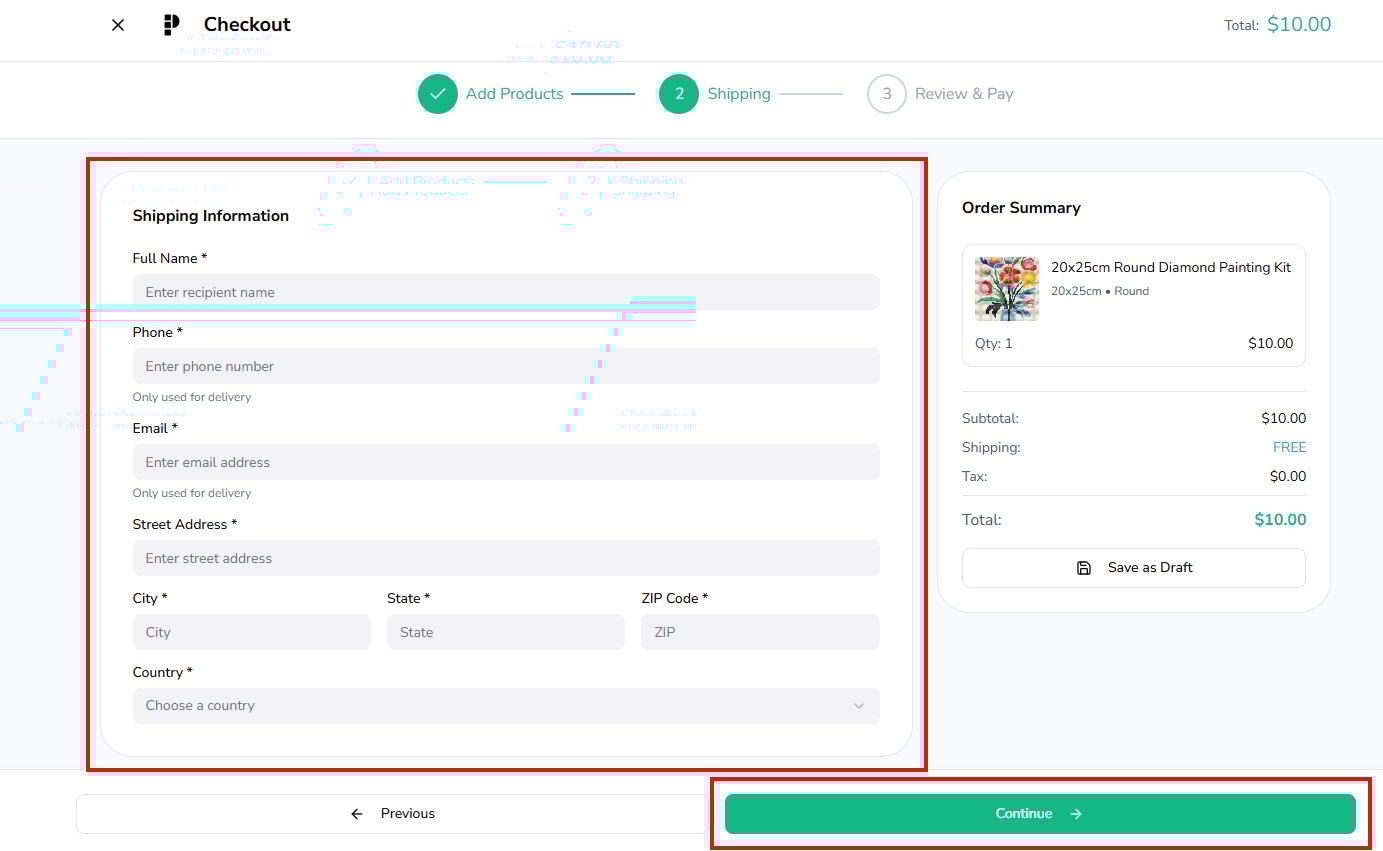
- Proceed by clicking "Continue" to enter your shipping information.
- Once you fill up the shipping information, click the "Continue" button to get to the Review and Pay step.
- Review your order details to ensure accuracy. If you have a pre-set billing method, you can select it and proceed to "Complete Purchase".
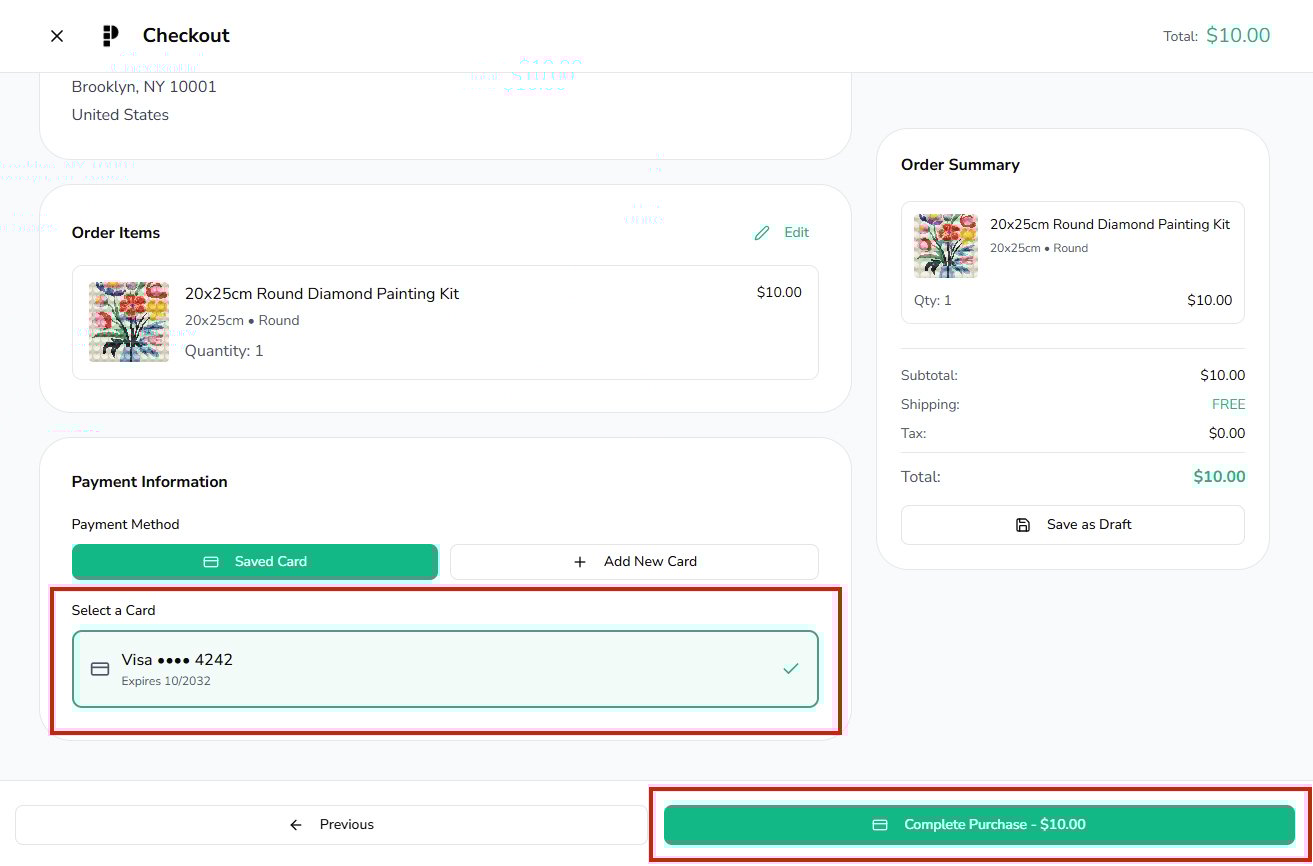
For instructions on setting up a billing method, please refer to How to setup and edit your billing method. You can also add it by clicking "Add New Card".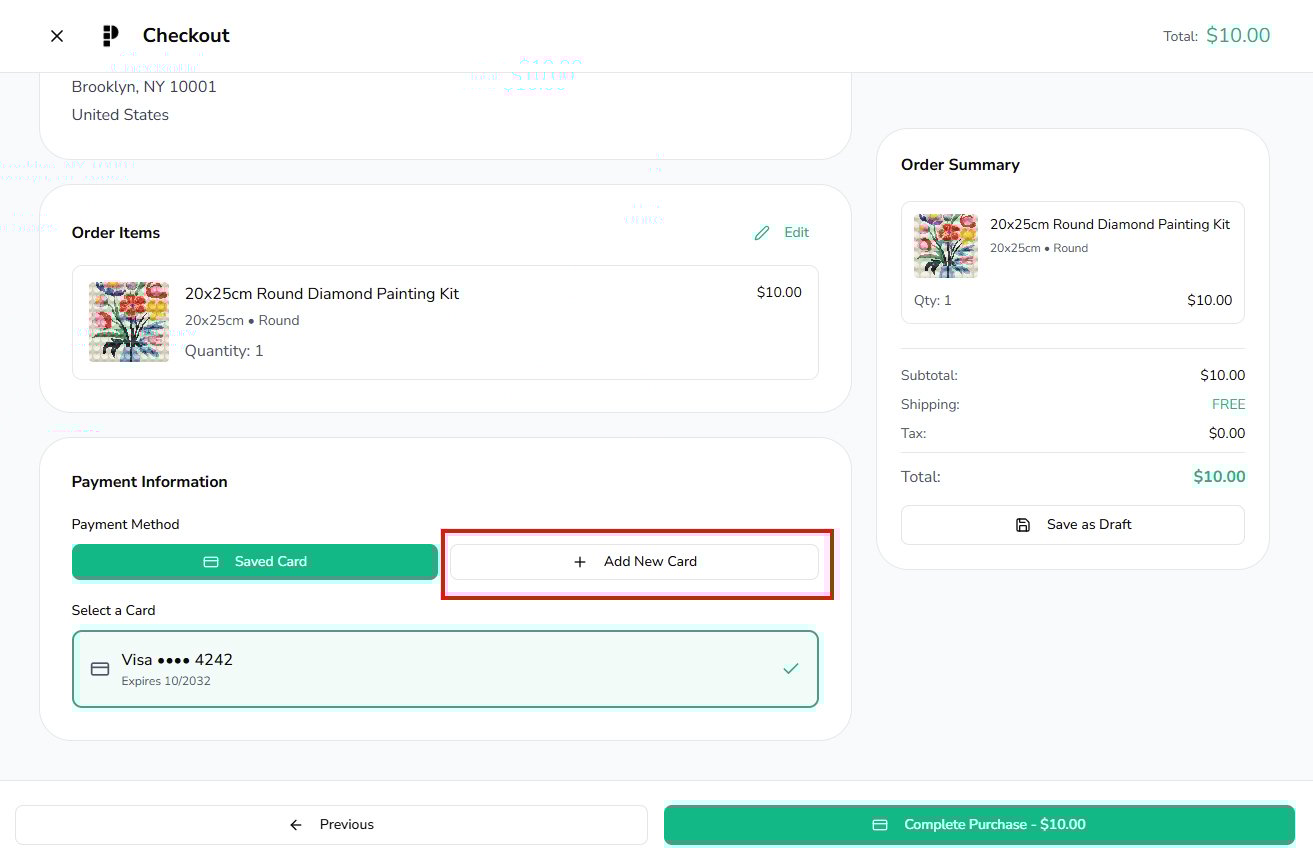 If you are paying via invoice, you'll see "Submit Button" which submits the order to production w/o going through the payment process.
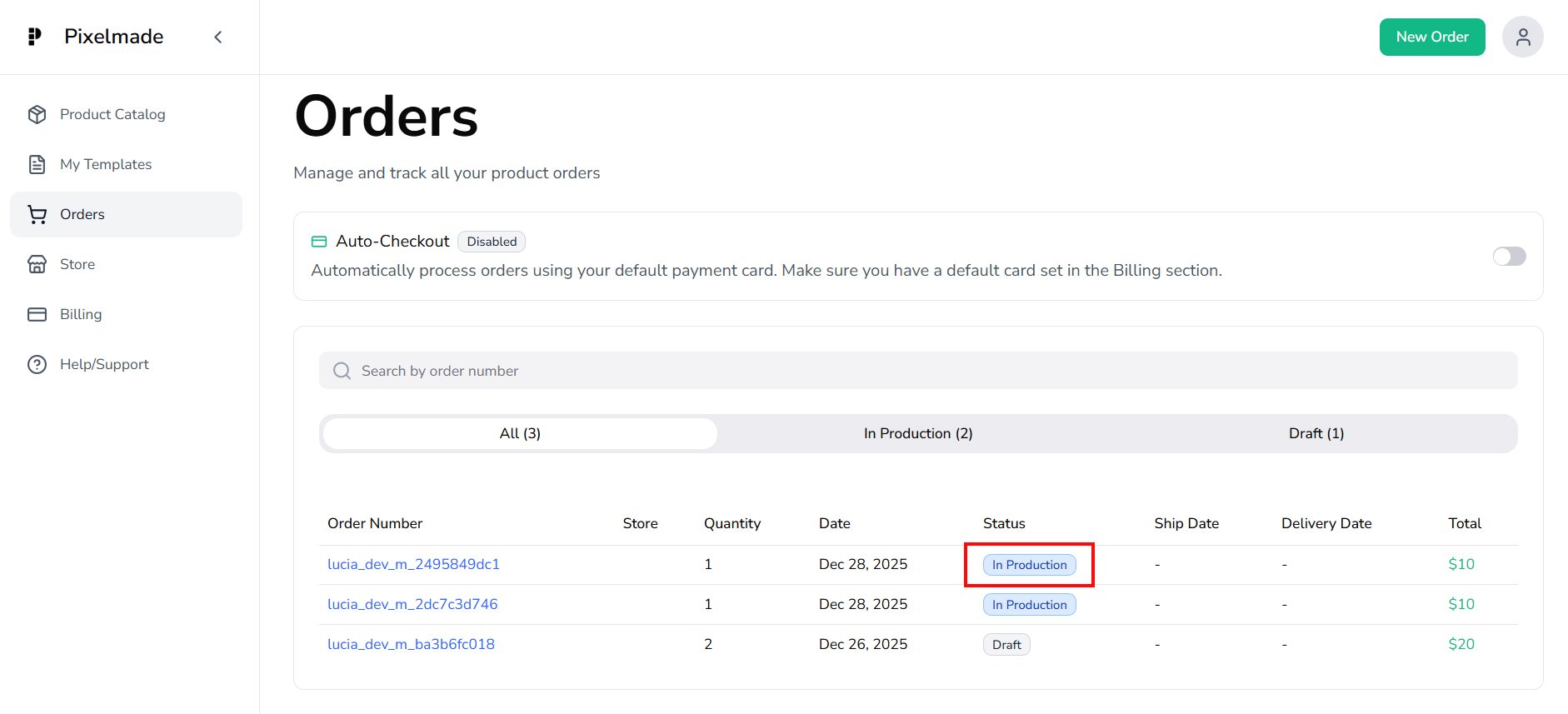
 - Once the payment is successfully completed, your order will appear in the "Order" section with the status "In Production" indicating that we have received and are processing your order.
Note:
If you need to make changes or cancel your order after it has been placed, please refer to this page for more information.
If you encounter any issues while placing an order in the app, feel free to email us at [email protected] for assistance.