How to create your own product templates?Updated 9 months ago
Process Overview
Step 1. Choose a product
Step 2. Create the product template
Step 3. Review and save
Tips: Click here to see full Design Guide. |
Step 1. Choose a product
1. Go to "Product Catalog" and select a product.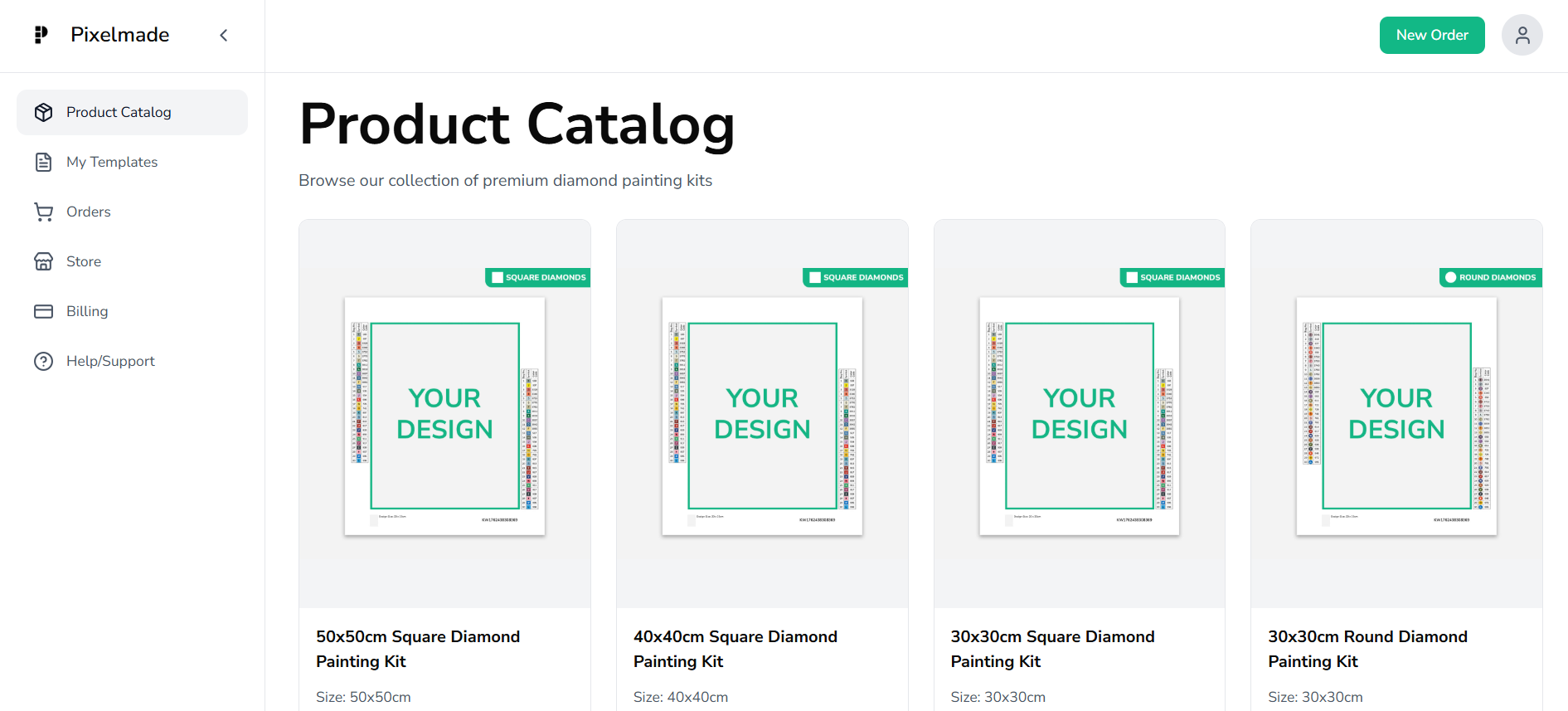
2. Click "Create Product Template" button
Step 2. Create the product template
1. Download the Design Bundle and create your design in Photoshop using the correct template for your selected size. This gives you full pixel-level control and ensures your file aligns perfectly with the diamond grid.
Please check our Design Guide for step-by-step instructions.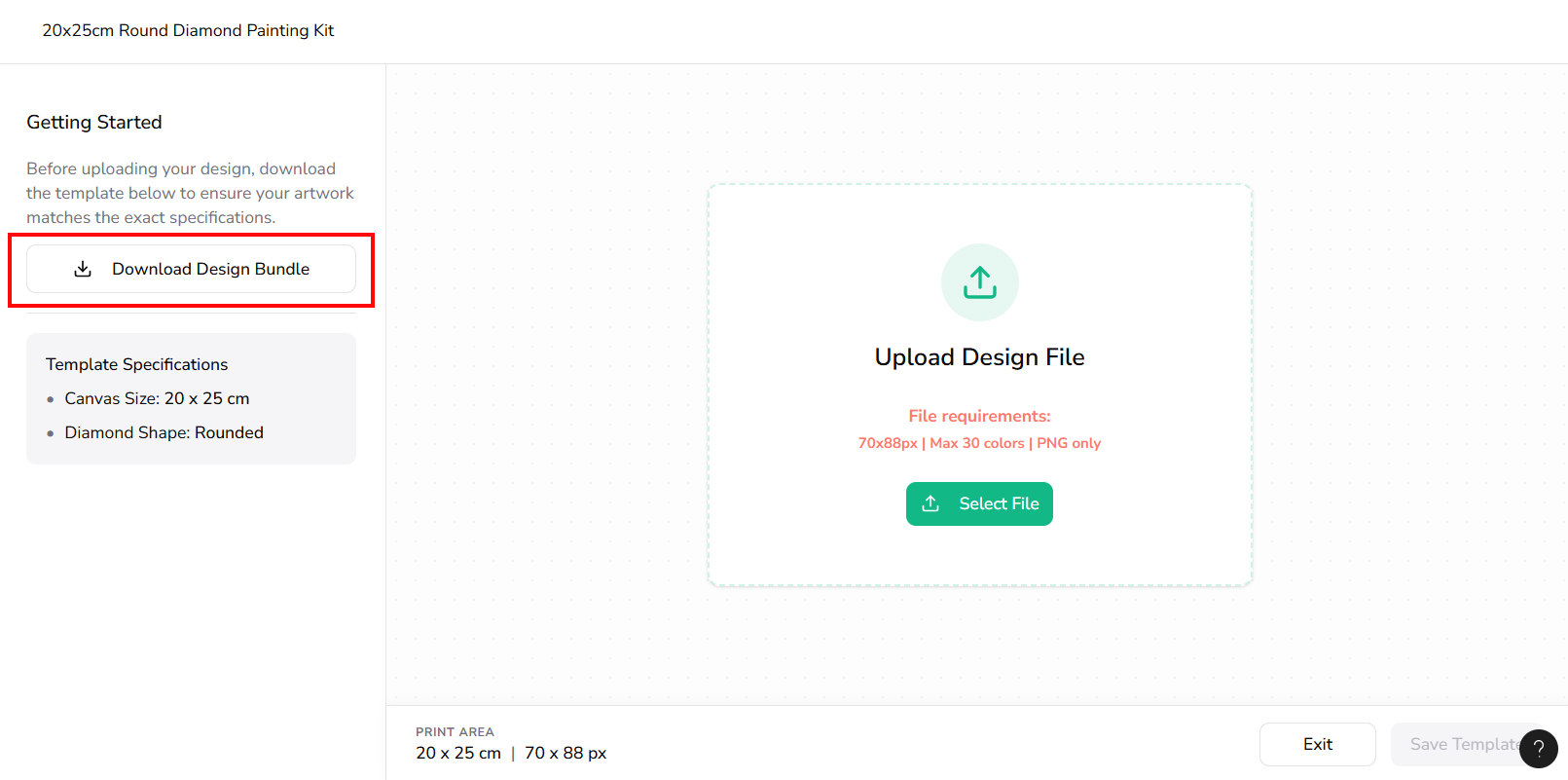
2. Click "Select File" and upload the PNG image you created. 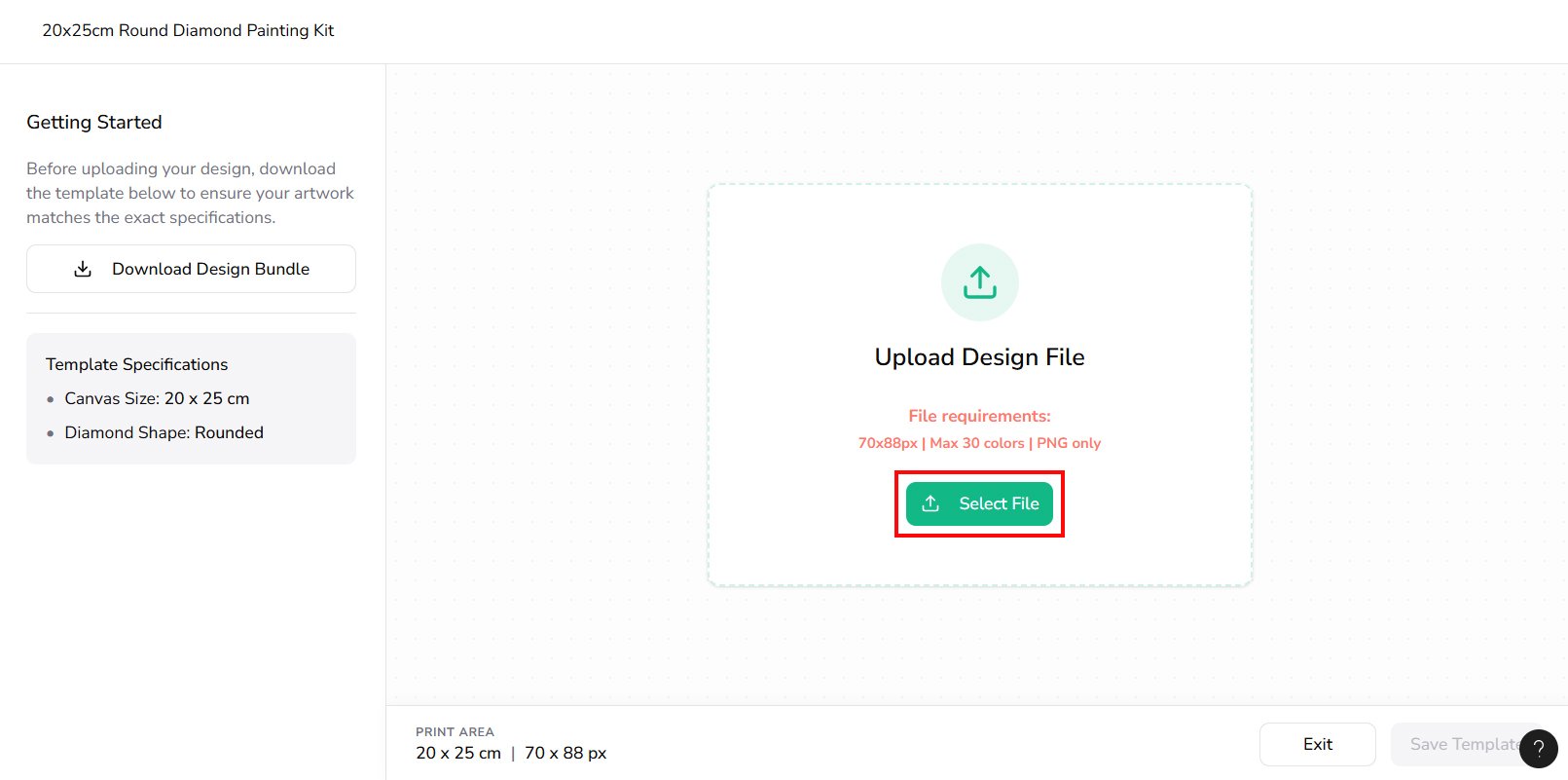
3. The colors on your image are automatically matched to the closest shades from the 445 standard DMC diamond colors available in our stock.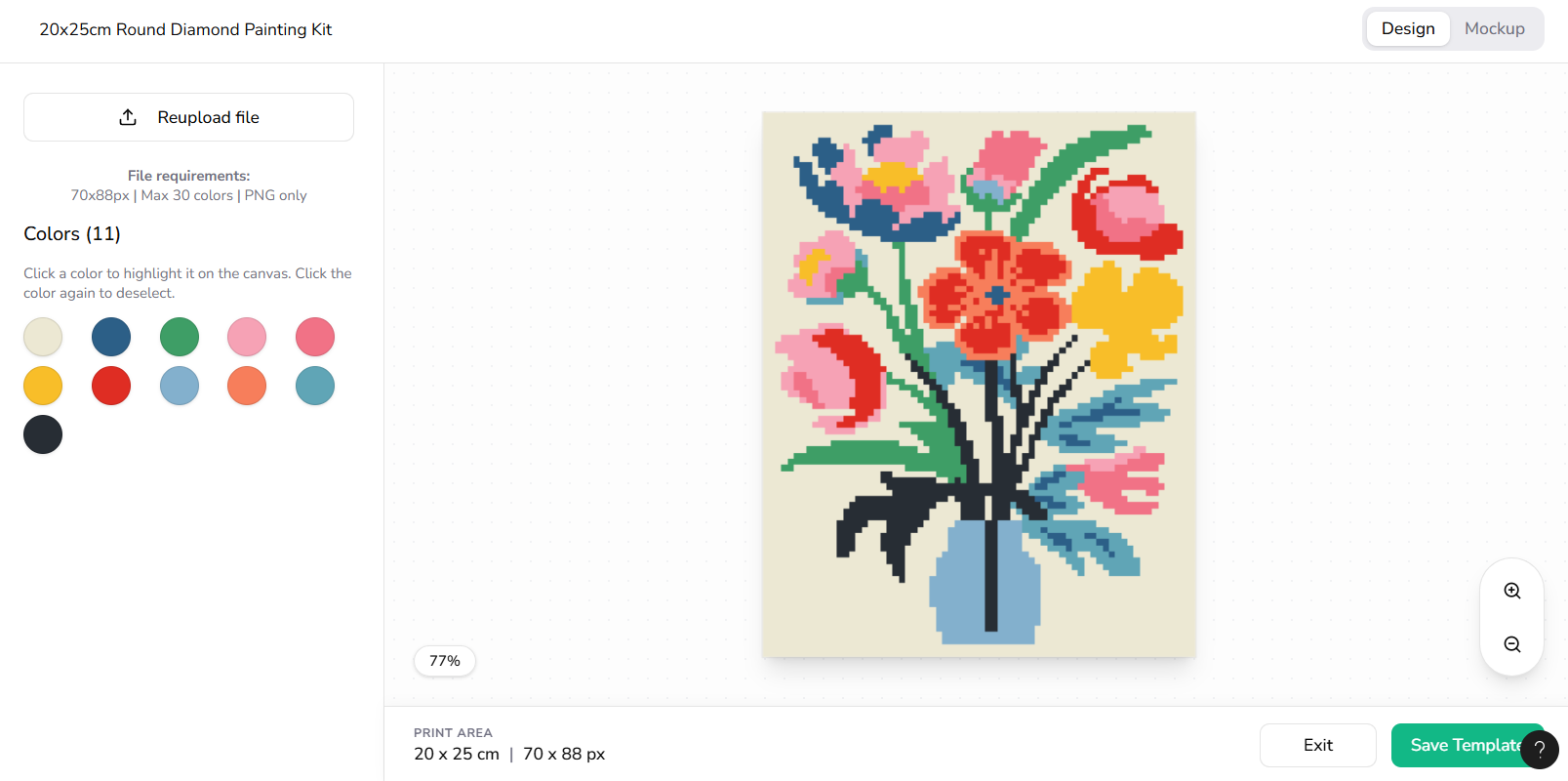
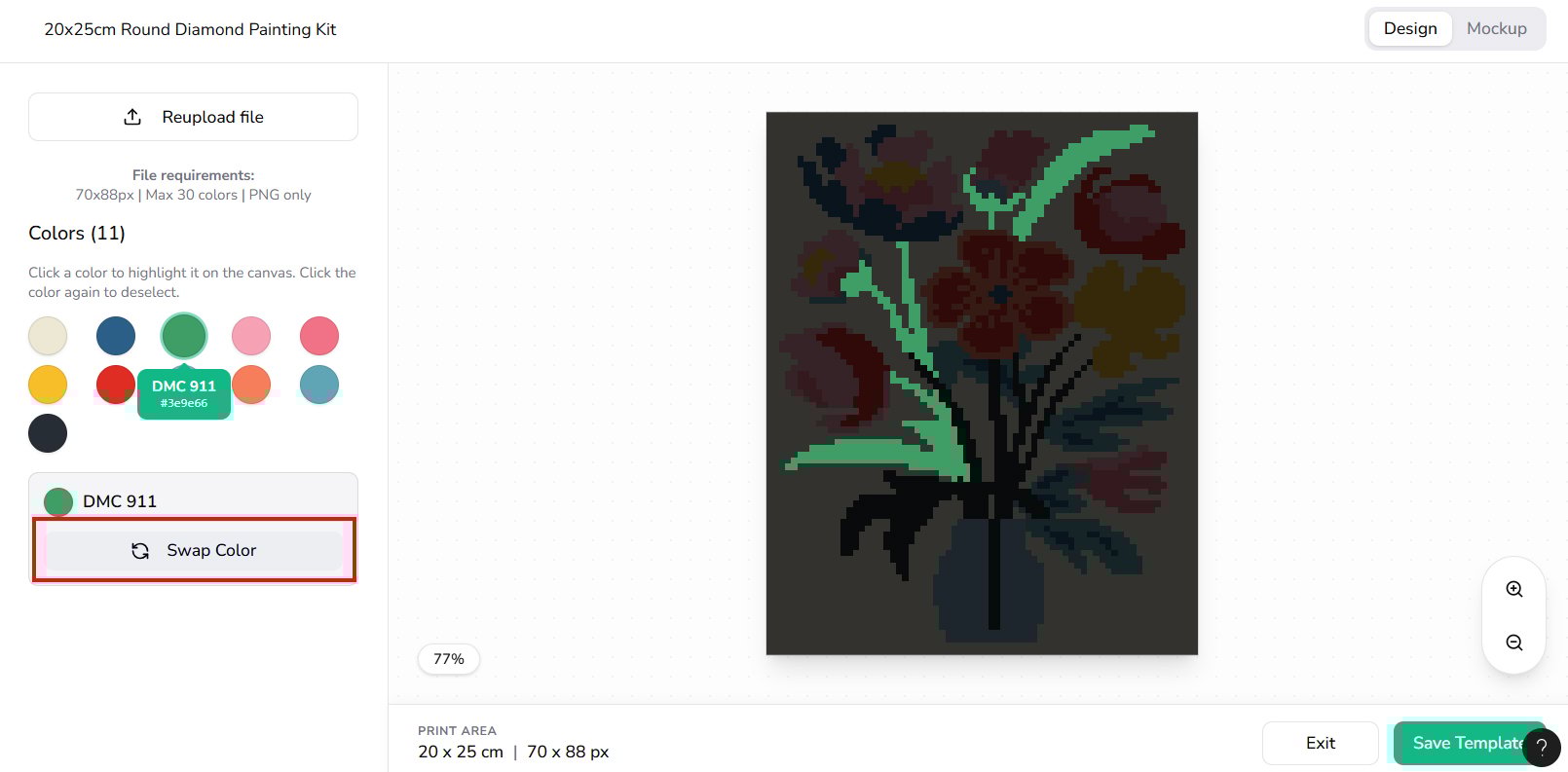
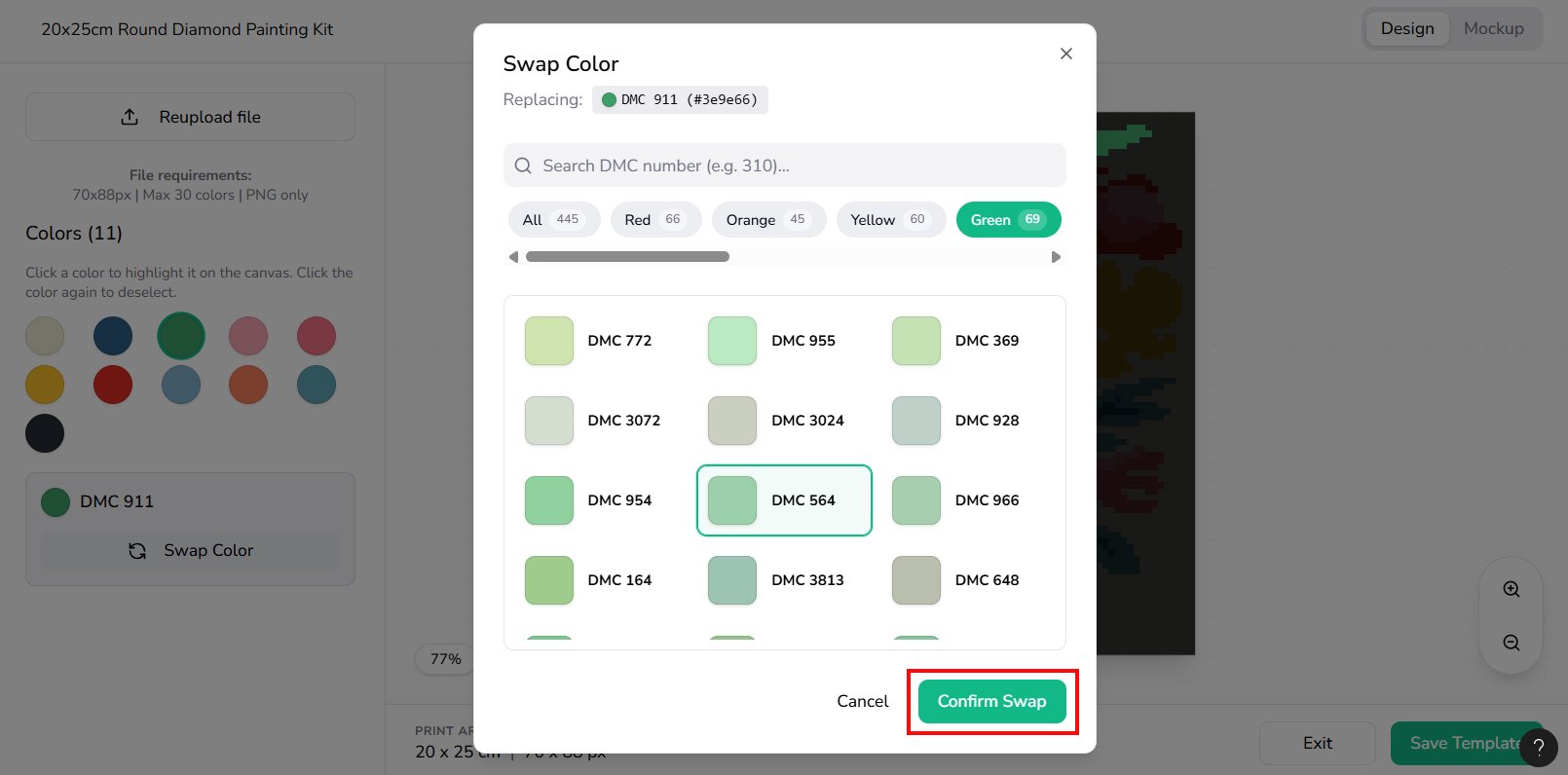
4. If needed, you can select a color swatch to highlight it on canvas and swap to another DMC color.
5. Rename your template so it’s easy to identify.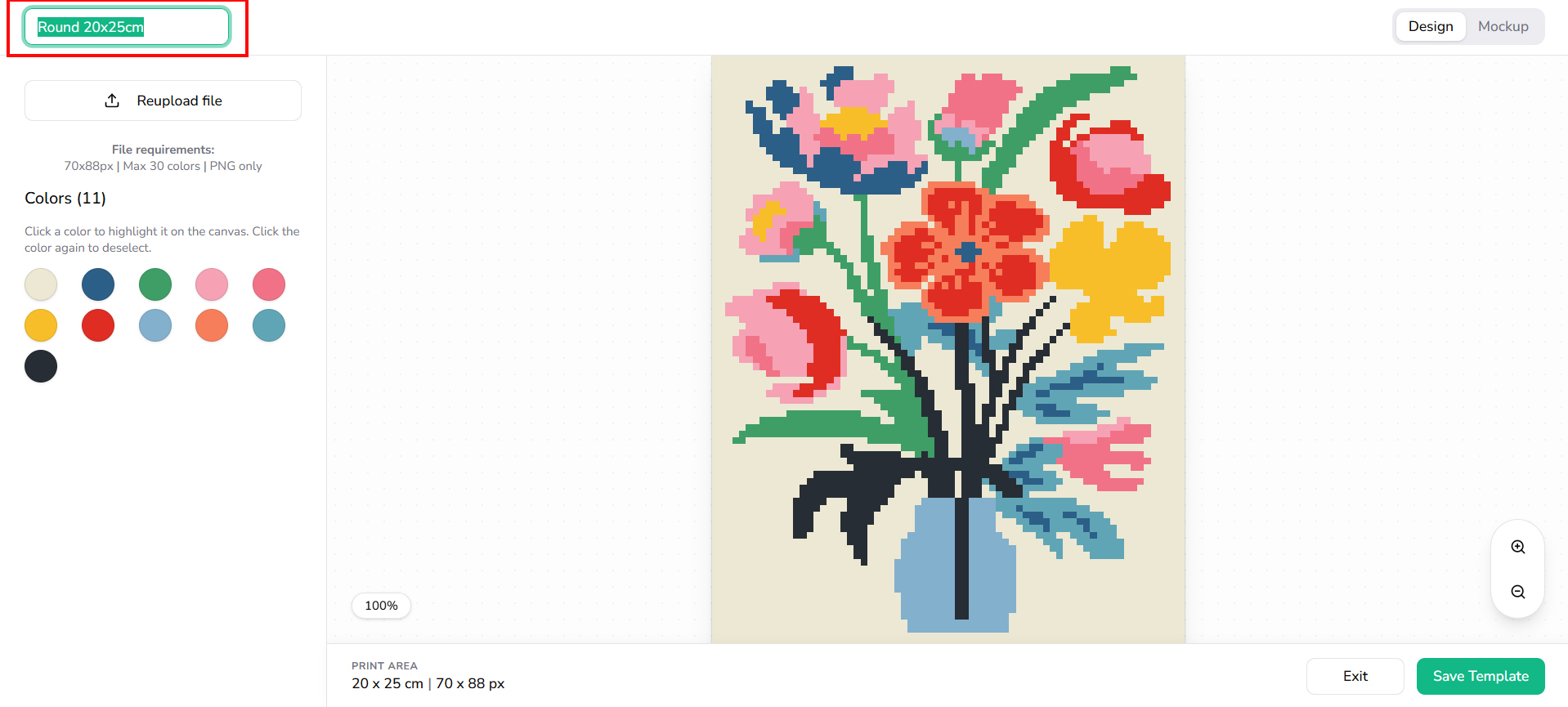
Step 3. Review and Save
1. Switch to “Mockup” view to see how your design will appear as a completed diamond painting and printed canvas.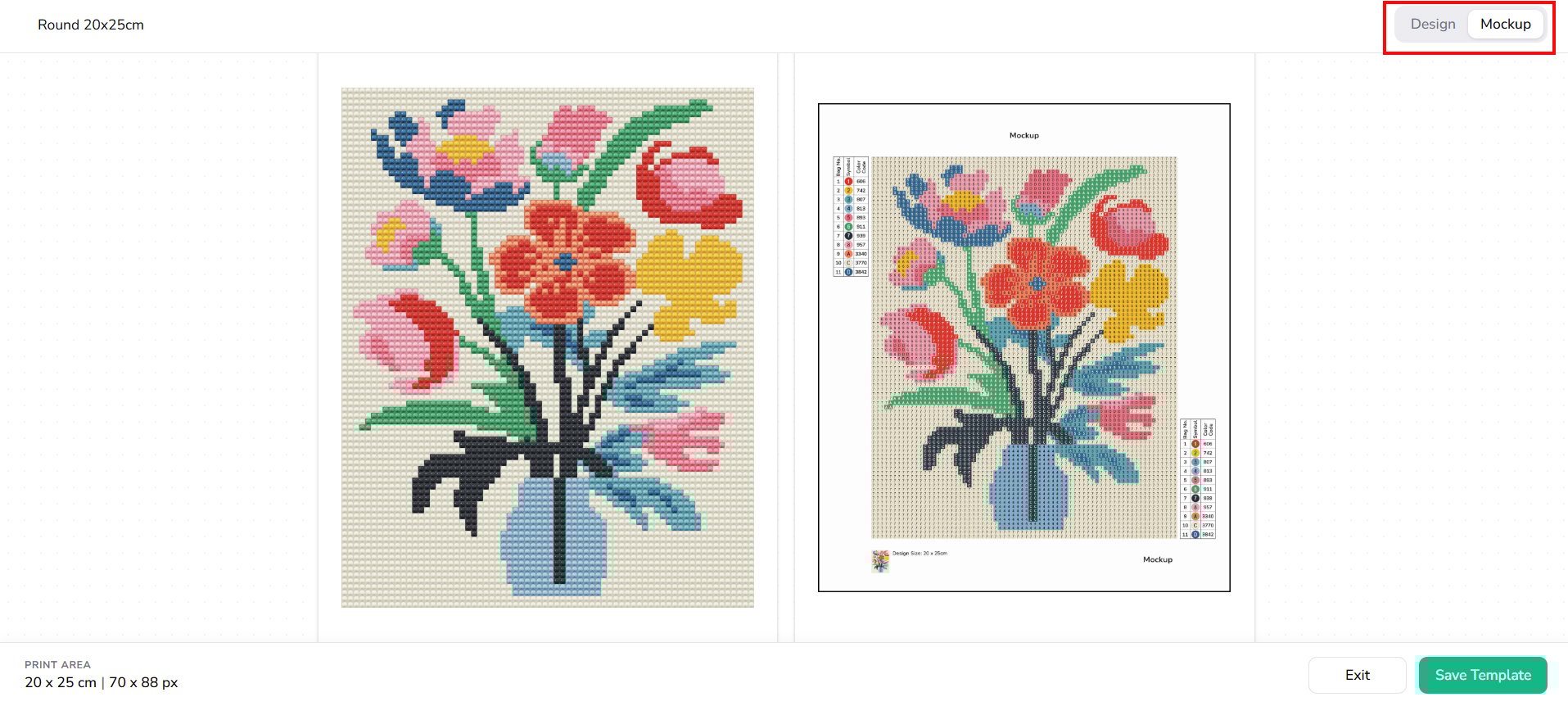
2. Click "Save Template" to save your template.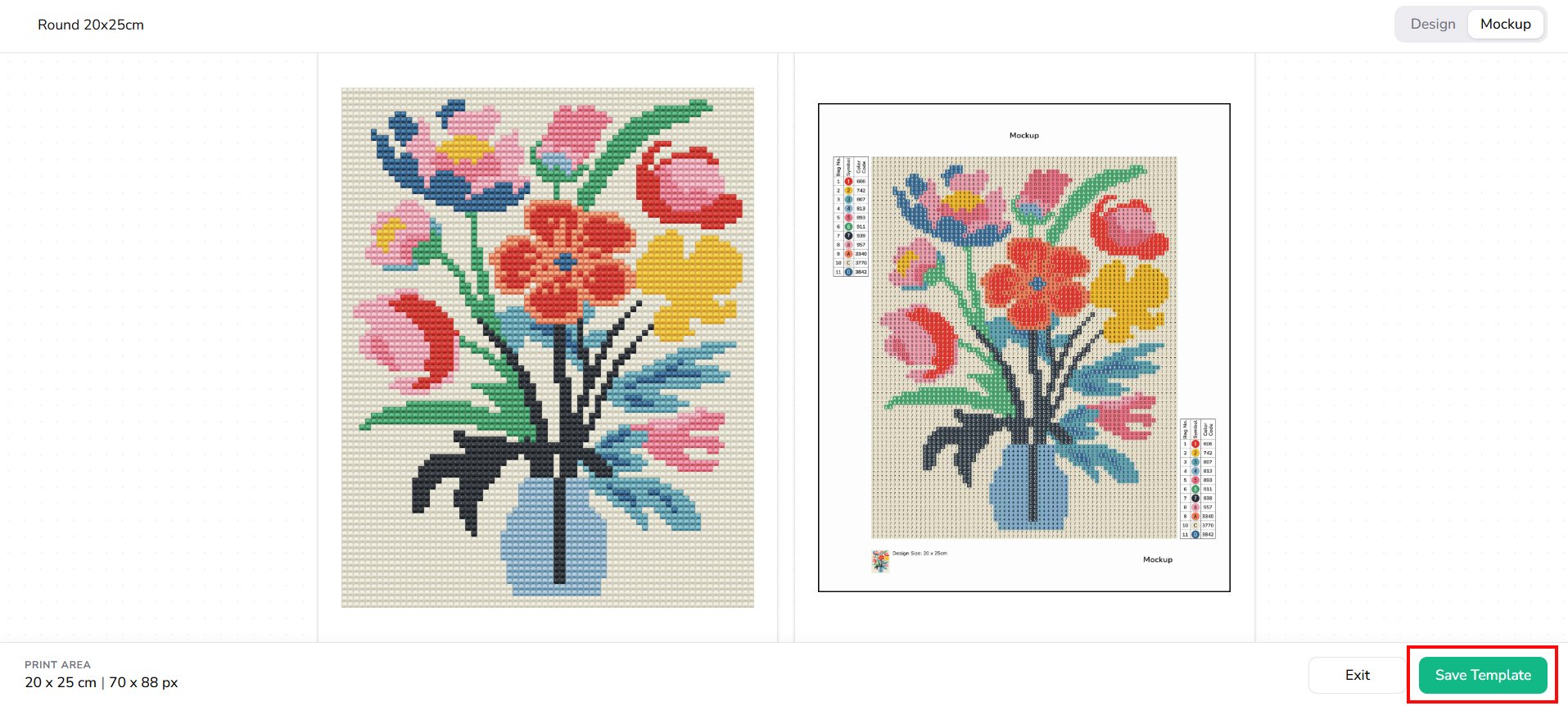
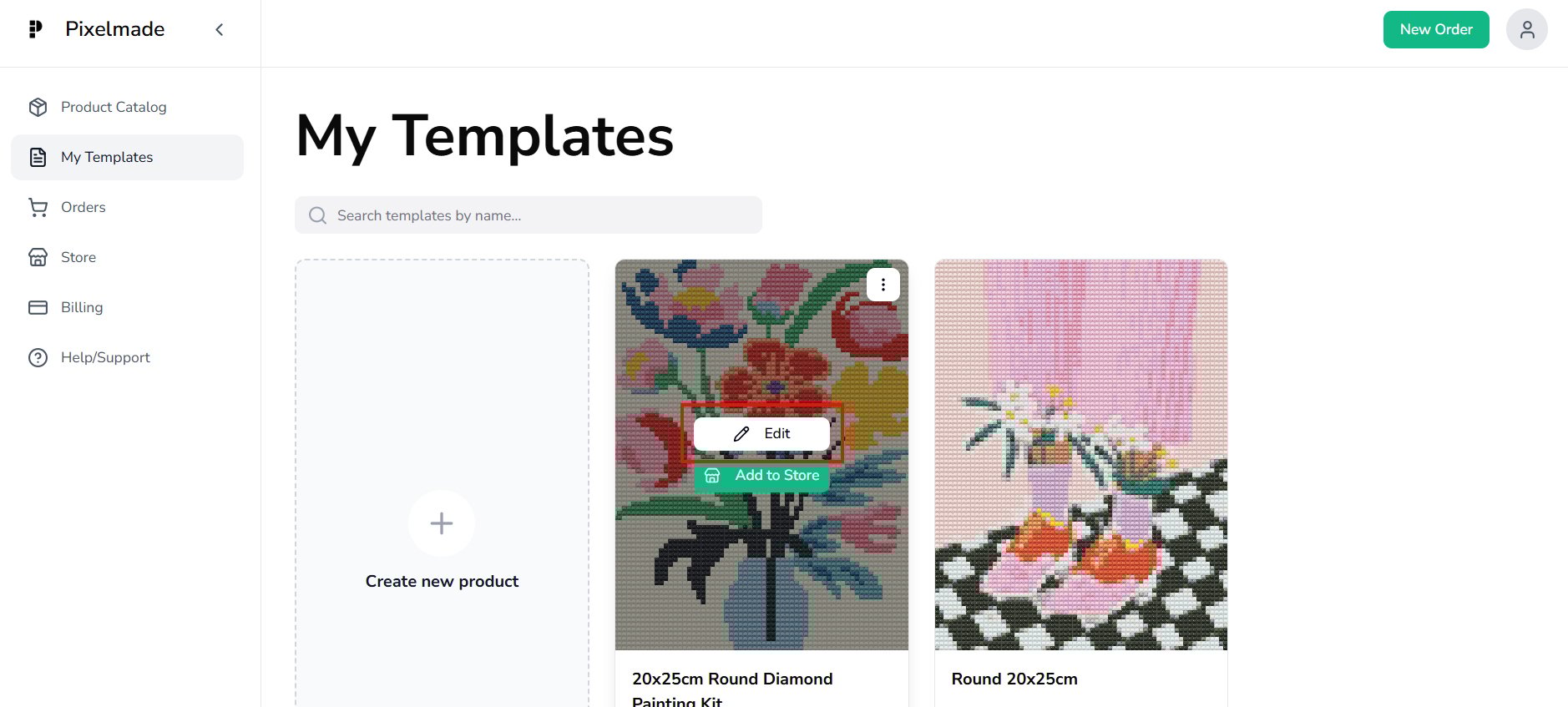
3. In "My Templates" section, you will see your product template saved. Click "Edit" to make changes to your product templates and reupload design files if necessary.